Using Git on this course
This material section introduces the practical steps that enable you to use Git on this course.
Personal Git repository
For each student registered in the course, we will create a personal Git central repository during the first week. When your repository has been created, you will receive an automatic message to you student email about it.
Important
If you did not receive an automatic e-mail, do not try to log in your
repository, but check first if the message has been classified as a spam.
If you cannot find the message, although you should have it,
please contact course personnel (prog2@tuni.fi).
Logging in before the repository has been created often leads blocking
you from your repository.
After receiving this message, you are able to see the content of your repository with a web browser, using the web address (URL):
https://course-gitlab.tuni.fi/compcs110-fall2026-p1/###.git
where ### shall be replaced with your intranet username.
When Git or a web browser asks your username and password, you should write your own intranet username and password. Note that username is not the same as email address. You should know your username at least based on the automated email that you should receive after your repository has been created.
Web user interface is meant for exploring the content of the repository.
Although it provides tools, for instance, for changing settings,
do not make any modifications in the repository through the
web interface.
Namely, if you do not exactly know what you are doing, some properties,
critical from the point of view of the course, may stop working.
Especially, avoid Settings selection at bottom left.
Instead you can find interesting information at
Files, Commits, Network, and Graphs.
The more you use version control, the more you can understand the
information.
You will need the aforementioned URL also when cloning your repository (see next subsection) and when submitting your program code on Plussa.
Before submitting the first assignment
Important note concerning repository cloning
It is not a good idea to clone the repository directly to your home directory, but it is better to first create a new directory (folder) where to clone the repository. This is especially important if you have taken the course earlier and you have earlier cloned a repository with the same name (the name of your repository is always the same as your username).
This section considers necessary initial actions when using Git in command line (Terminal). Instead, if you use Git from Qt, you can read initial actions from the section Option: Using Git from Qt Creator at Initial actions.
Initial actions in command line
To say it shortly, here we will clone the Git repository that can be found in the web link mentioned in the previous subsection just above. If you cannot use the command line yet, you can get familiar with it by reading from the end part of the material Command line operations.
From a certain url, you can clone the repository to a given path as follows:
git clone <url> <path>
In cloning you can give a path, also different from the default one. In this way, you can follow your own naming convention. If you give no path, then the directory will be created in your working directory. By default the name of the directory to be created will be the same as the repository to be cloned.
You can copy the URL needed in the command from the repository’s web user interface (on the right) by pressing the button “Code”, which opens the menu:
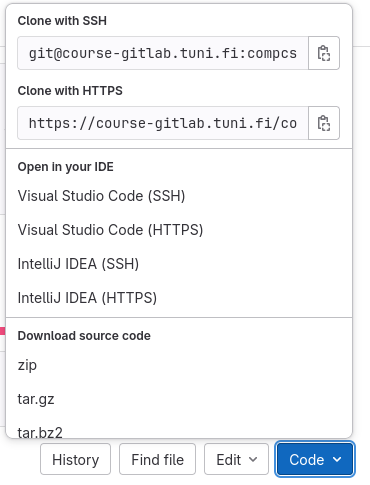
If you have set your SSH key in GitLab (see material concerning it) you should use SSH URL, otherwise use HTTPS URL.
If you cloned your repository in the subdirectory called prog2
under your home directory, you will find the repository from the path:
/home/username/prog2/username
where the word username is replaced by your own intranet username.
If you cloned your repository in your home directory, you will find it
from the path:
/home/username/username
In both cases, the directory username occurs twice in the path,
but this should not cause problems.
Git commands should work only in the lower level username directory.
(If they are working also in the upper level username directory,
you should contact course personnel, e.g. by sending e-mail to the
course e-mail address, prog2@tuni.fi.)
Final notes
A Git project may include any type of files. In this course, your Git repository includes three subdirectories, each of which includes subdirectories that are projects of Qt Creator. Qt Creator assumes that a project is a directory including a .pro file C++ source code files. In large software projects, a single Git repository typically includes a single Qt project, and thus, Qt Creator expects that the cloned Git repository would include a .pro file, based of which Qt Creator could automatically open the project. The error message was due to the different structure of the repository used in this course. However, we could still clone the repository.
Possible problems
If you have (had) an employment relationship at Tampere university, you may meet a problem in login in GitLab due to two identities (as a student and as a staff member). In such a case, please contact prog2@tuni.fi. In the e-mail, please tell also your username.
If cloning fails, you can try to login via a web browser to your repository. This may solve the problem.
Note
We are using course-gitlab of the university, and it has some restrictions when compared to a normal Git. For example, as a student you have no rights to create new repositories. In addition, the repositories created for the course will not be stores for ever. We will return to this topic, after you have practices Git a bit more.
If you want already now practice to create repositories of your own and other more advanced use of Git, you can study GitHub.